
Here’s some tips on how you can stay safe and secure online! There will also be a list of terms at the bottom of this document.
Additionally, the Cybersecurity & Infrastructure Security Agency created a toolkit with a ton of resources. Check it out here!
**NOTE: I will mention various companies and brands. None of the contents of this article are sponsored or paid and opinions are solely my own. I will always disclose to my community if a company is paying me or sponsoring me for content. I will never
Phishing: How to Avoid it?
Phishing attacks can come in many forms. Phishing attacks are a form of “social engineering,” in which someone pretends to be someone or something else to try to get you to reveal personal information, or otherwise compromise your security. Here’s some examples:
- Emails
- You receive an email from “Jake from State Farm” asking you to give them your credit card information to renew your insurance with them.
- Phone Calls
- You get a phone call from Amazon stating that your bank canceled a $500 purchase for an item and you need to pay them urgently.
- Physical mail
- You get a letter from the IRS asking you to send them your social security number and bank statement to verify your identity.
- Text messages
- You get a text from FedEx stating that you’re going to receive a package, but you need to pay an additional shipping fee before they can deliver it.
These all sound like they can be possible scenarios, but how do you know if they’re real?
First of all, make sure that you’re receiving the information from the right place. If it’s an email, check the address from the sender and ensure that it’s from the actual company’s website. If you’re not sure, enter the address on google and add “scam” afterwards. There’s many forums and threads where people ask these questions to be sure. If it’s a phone call, look up the customer support number online and call them back directly. NOTE: Google allows people, this includes scammers, to pay to have their website displayed as the “first result.” To avoid clicking on the wrong link, make sure it doesn’t say “Sponsored” next to the link, and check the domain to make sure that it’s spelled correctly. If it’s physical mail, call whichever company or organization sent it by looking up their number online. Do not call any numbers that are listed on the letter. If it’s a text message, check the number it’s coming from. You can look it up online to verify. Sometimes, text messages can also be sent from email accounts. You can verify if the address is correct by looking at the domain.
Secondly, most phishing scams will have various typos and grammatical errors, as well as an unusual use of language. If you’re unsure, you can copy the email and paste it into ChatGPT and ask it if it’s a phishing scam. If it finds it suspicious, it will tell you why. Here’s an example of a phishing email:
Dear Office 365 User:
I hope you’ve had the opportunity to integrate Office 365 into your daily business activities. If you are using Office 365 today, then you already know that this exciting new tool can be used for everything from increasing team collaboration to more productive meetings.
We would like to hear from you. Please take a few minutes to complete our Office 365 feedback survey to share your thoughts and input on how Office 365 is working for you.
[Feedback]
To say thank you for completing this survey, we will give you $25 credit to your Microsoft account.
Regards,
Office 365 User Success Team
Here’s some things to note about this email:
- The email starts with “Dear Office 365 User.” If this was linked to your account, it would have your name, as they can feed that information from your account details.
- It closes with “Office 365 User Success Team,” but has no information on the company, branch, or other contact information.
Some other information that I didn’t include:
- “Feedback” is a button that links to a website with the domain “micrasoft-office365” which is an instant red flag, as Microsoft was spelled incorrectly.
- The email address from the sender has the domain “micrasoft-office365” as well, which is not a domain owned by Microsoft.
Some phishing scams might be easier to detect, while others might be very difficult. If you’re unsure, always contact the original company through their public contact information and verify with them directly.
Finally, information they will ask for sensitive information. This includes the following:
- Social Security Number, or other personal identification numbers
- Banking information (such as account numbers, card numbers, etc.)
- Two-Factor Authentication numbers (these codes will never be asked for over the phone, email, or text)
- Passwords
- Answers to security prompts (these are only used to reset/change passwords)
- Ask you to control your device using a remote-desktop program, such as AnyDesk.
If you are being asked for this information, don’t give them out. If you are being asked to pay over the phone for whatever reason, do not give information. One of the most obvious forms of phishing is when individuals ask you to purchase gift cards. Companies will never ask you to purchase a gift card to pay them. They will always have you submit a formal payment through their online portal, which you have to access with your account, or they will do an automatic payment with information you have on file. Their employees never access your payment details.
The biggest tip I have for avoiding phishing scams:
Hang up, find the original sender, call and verify yourself
There is one last form of phishing called OAuth phishing. These are phishing attacks that use legitimate websites to execute. For example, if you play an online game, you might access a website that tells you that you won a free in-game item. It will prompt you to login using your account, but it will use a link that will authorize your account on the actual game website (e.g. Steam authenticator) and it will compromise your account. To ensure this doesn’t happen to you, make sure the website that you go for that free item, or whatever it may be, is the original website before logging into the website.
Malware: Protecting your Devices
There are a number of different types of malware that can be found on a computer. Here’s the most common ones, and how to identify them:
Virus
A virus is the most common form of malware. This also has various types. In general, a virus is caused by downloading a malicious file to your computer. It can cause your computer to shut off and stop working, or affect the way it works (bugs, slowness, glitches, etc.). They are called “viruses” because they can spread to other files on your computer. They work by deleting data. At the worse cases, they delete the system files. Once those files are deleted or corrupted, you cannot use your device anymore.
Adware
Adware is another very common virus. Adware causes your computer to show various advertisements as “pop-ups” either on your device or while you’re browsing the web. The majority of the advertisements that show up on your device link to malicious websites that can also contain other forms of malware or be phishing scams.
Worms
Worms are another type of virus. Worms are a malicious file or program that duplicates itself to cause your computer to slow down and eventually stop working. Your computer has a limited amount of “working memory,” or temporary storage that is used when you’re running programs or working on your computer (this is called Random Access Memory or RAM – and most common computers in these days have anywhere from 4GB to 16GB, but certain computers can have more). When your RAM gets full, your computer will start experiencing difficulties and could lead to crashing.
Trojan Horses or Trojans
If you know a bit about Greek mythology, you would hear about the story of the Trojan Horse. The Trojan Horse was a large, wooden horse that was used by the Greek. They would hide warriors inside to sneak into Troy. Computer Trojans work the same way. Trojans are programs, files, etc. that are disguised as a different program. It then begins to steal data, delete files, or other things from your computer. These are some of the most difficult types of malware to detect.
Ransomware
Ransomware is a type of malware that prevents users from accessing certain files, programs, or other functions from their computer. They typically prompt you to “pay” the ransom to get access to your device again. In most cases, they will ask for personal information or monetary payment (usually in the form of cryptocurrency). Even if you pay the ransom, you might not get access to your device and your device might already be compromised.
Keyloggers
Keyloggers are a form of malware that tracks when you input passwords or other sensitive information to websites. It “logs” them by sending them to whoever created the software and gives them access to your personal accounts. One form of keyloggers is in the form of a trojan horse, where you download a program that appears to do one thing and then starts to log your personal information without your knowledge.
Scareware
Scareware is typically in the form of pop-ups from your browser that are telling you that your account or computer is compromised. It will prompt you to visit a certain website or call a number to resolve the situation. Closing out of the program typically fixes the issue, but sometimes they can also come from Adware or other forms of malware.
Backdoors
Backdoors are usually add-ons to preexisting malware (such as Trojans). Backdoors allow hackers to access your computer without your knowledge through a program that you installed. It gives them the freedom of passage into your computer’s files to take sensitive information, and even control your device in some instances.
There are so many more different types of malware out there. The best way to stay protected is by using a trusted Antivirus software. I personally recommend Bitdefender or MalwareBytes (I am not being sponsored or paid to recommend them). When downloading antivirus software, make sure that you are downloading it from the actual website. Antivirus software often has free trials, but will cost a subscription. I personally pay for Bitdefender yearly, which protects 3 of my devices, as well as give me access to a VPN. We will cover VPNs in the next section.
Here are some tips:
- Do not download files, images, programs, etc. from websites you do not trust.
- Do not download or open file attachments linked in emails, messages, etc.
- Do not click on advertisements on webpages
- Do not click on pop-ups on your browser
- Some pop-ups will have a “close” button, or something that looks like a close button. They can be fake, so don’t close advertisements.
- Use an antivirus software to scan downloads. They can often catch a malicious file and delete it before it affects your device.
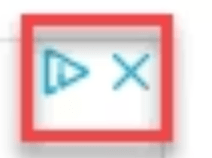
- Some websites will have advertisements that look like download buttons. Almost every advertisement will have some identification that it is an advertisement, which will either be in a text that says “Advertisement” or “AdSense,” or a blue logo that looks like a triangle, imaged below:
When in doubt, you can reach out to professionals in person to get advice for malware. GeekSquad at Best Buy (not sponsored or paid) can remove malware from your device. If you believe your data has been compromised, change the passwords to all of your accounts on a device that is different from the device that has been infected.
VPNs and Browsing the Web
When browsing the website, especially when sending confidential information online (such as credit card information for online purchases and shopping), your information can get stolen while it’s being sent by a hacker. This is called “Man-in-the-middle” (or MitM) attacks. Alternatively, you can be working at a coffee shop, using the public Wi-Fi, and a hacker can be connected to the network and use a program that steals information being sent through that Wi-Fi connection. The question is, how do you protect yourself from this? The answer is downloading a VPN.
A VPN, or Virtual Private Network, is a software that creates a private network for you to browse the internet securely. You download a VPN online (I personally have used ExpressVPN, NordVPN, and the VPN included with Bitdefender – not sponsored or paid). You will then turn the VPN on and it will create the network for you. You can test to see if it’s working by googling “what is my IP address.” It will show a new address that was given to you by your VPN. The VPN creates a tunnel between you and all the sites you visit. It does this by having the VPN act as the middle-man between you and the server of the website. It will take all the information from the server, and then pass it to you. It will take all your information, encrypt it, and then send it to the server. You won’t be directly connecting to the server, so hackers can’t trace things back to you. Additionally, since all of the information is encrypted, hackers can’t see what type of information you’re sending. Your credit card information while shopping online is safe.
Closing Thoughts
You can never be 100% clear from cybersecurity threats. These tips will help you stay secure online, but sometimes your security can be compromised from data breaches, vulnerabilities in programs, and more. Make sure to update your passwords regularly and use an antivirus software to help you stay protected as much as possible.
Share this information with your friends and family to help them stay secure! Check out more resources here.
Glossary
- Domain
- The basic website address. (e.g. “youtube.com” is the domain for every single YouTube video – it doesn’t include the extra stuff at the beginning or end). The web domain CANNOT contain a period. (e.g. “you.tube.com” is NOT valid. This means the domain is “tube.com”). Make sure the spelling of the domain is correct.
- IP Address
- An IP Address is a unique address for your device on the internet. There are two forms: IPv4 and IPv6. IPv4 looks something like 192.168.5.18, while IPv6 looks something like 50b2:6400::6c3a:b17d:0:10a9. Websites access your address directly, so you never have to give that information to anyone.
- Malware
- A malicious computer script, program, or software that compromises your device’s security, leaks your information, affects your device’s performance, and more.
- Phishing Attack
- An example of social engineering where an individual is made to believe that you are someone or something else (e.g. a representative at a bank) to get confidential information (e.g. social security numbers, banking information, etc.).
- Social Engineering
- A form of manipulation that is done by communicating with another person, either verbally or by text, with the purpose of that individual giving you something.
- VPN
- Also known as a “Virtual Private Network.” VPNs are like masks. They hide your IP Address from websites and hackers to encrypt your information. They can sometimes be called “tunnels” as it creates a private pathway between you and the host (or the website you’re trying to access).

KiindaLiinda (Linda G.)
KiindaLiinda is a gaming and tech content creator on Twitch and an engineer at NVIDIA. She focuses on STEAM education, charity, social good, and diversity. She uses her platforms to elevate women and minorities entering the tech and gaming industries. She is a member of the Twitch Latin and Women’s Unity Guilds, ambassador for 1,000 Dreams Fund, and has worked with a variety of brands and charities to make an impact in the gaming and tech spaces.

 KiindaLiinda
Leave a comment